 Buffer tutorial
How to Connect TikTok to Buffer
Connect a TikTok account to Buffer by signing in to the exact TikTok account first, adding a new channel in Buffer, choosing TikTok, and approving the requested permissions.
Quick answer
The quick answer
Sign in to the exact TikTok account in one browser tab before opening Buffer in a second tab. In Buffer, select + New, choose Connect a New Channel, select TikTok, and complete TikTok’s authorization prompts. Buffer connects the TikTok account currently signed in to the browser, so use a private window if another TikTok account could be selected by mistake.
Visual guide
The Buffer path
Click through the real product screens used in the steps below.
Step-by-step
How to Connect TikTok to Buffer
- 01
Choose the right Buffer organization
If you use Buffer for more than one organization, select the organization that should own the TikTok channel before you start. A personal Buffer account and an organization are separate workspaces. If you are a team member, Buffer says you need Admin access to connect or refresh social channels.
- 02
Sign in to the exact TikTok account first
Open TikTok in one browser tab and sign in to the exact account you want Buffer to connect. Buffer does not show an account picker during this connection. If the browser is signed in to a different TikTok account, log out of TikTok completely or use a private window, then sign in only to the intended account.
- 03
Open the new-channel flow in Buffer
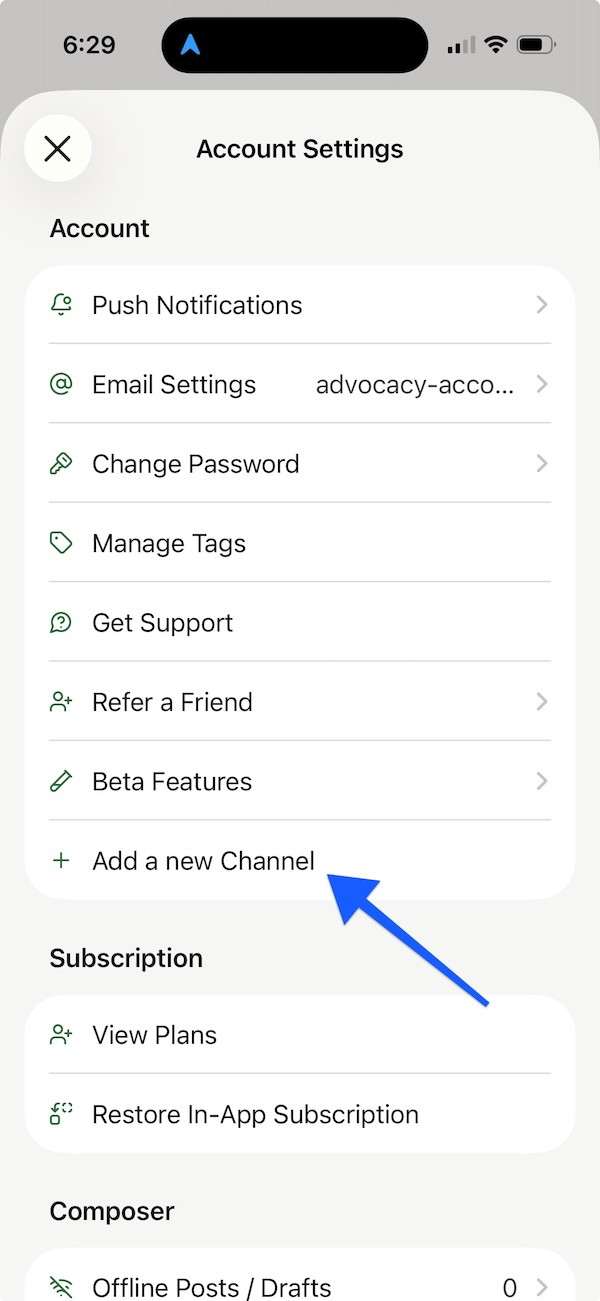
In a second tab, sign in to Buffer. Select + New in the top navigation, then Connect a New Channel. If your workspace already has channels, Buffer may label the action Connect New Channel instead. On the mobile app, open the profile icon, choose Account Settings, then select Add a new Channel.
- 04
Select TikTok and approve the authorization prompts
Choose TikTok from Buffer’s network list, then follow TikTok’s prompts to authorize Buffer. Approve the permissions TikTok presents and finish the flow. The connected TikTok account should then appear in Buffer’s channel list, ready for publishing, analytics, and engagement features that Buffer makes available for that channel.
- 05
Check the connected account before scheduling a post
Open the TikTok channel in Buffer and confirm its display name before scheduling anything. Set its timezone and posting schedule if you plan to use queue slots. When you create a TikTok post, choose Automatic for eligible posts or Notify Me when you need to finish the post in TikTok, such as adding music or a poll.
Read the report
What the main metrics mean
Connected channel
The TikTok account that Buffer recognized from the active TikTok browser session and added to the selected Buffer organization.
Automatic publishing
Buffer publishes an eligible TikTok post at the scheduled time without a mobile handoff.
Notify Me
Buffer sends a mobile notification so you can finish a TikTok post in the TikTok app when it needs a native-only feature.
Channel timezone
The timezone attached to the individual social channel that Buffer uses when scheduling queue slots.
Before you continue
- Confirm you are in the Buffer organization that should own the TikTok channel.
- Sign in to only the TikTok account you intend to connect, or use a private window to avoid attaching the wrong account.
- If you are part of a Buffer organization, confirm that you have Admin access before trying to connect the channel.
- After authorization, check the TikTok display name in Buffer before scheduling a post.
- Set the connected channel’s timezone and posting schedule before relying on Next Available queue slots.
FAQ
Common questions
Why did Buffer connect the wrong TikTok account when I added a new channel?
Buffer connects the TikTok account currently signed in to your browser, so log out of other TikTok accounts or use a private window before starting the connection again.
Do I need a TikTok Business account to connect TikTok to Buffer?
No. Buffer says most users can connect and publish from a regular TikTok account, although TikTok can limit features by account type or region.
Can a Buffer team member connect a client TikTok account without admin access?
No. Buffer requires Admin access within an organization to connect or refresh its social channels.
What should I do after connecting TikTok to Buffer if I want to use trending audio?
Choose Notify Me for the TikTok post, then use Buffer’s mobile notification to open the post in TikTok and add the audio before publishing.
Why is my connected TikTok channel asking me to reconnect in Buffer?
TikTok can revoke or expire Buffer’s publishing permissions after security or account changes, so reconnect the channel to restore publishing access.
Sources and further reading
This guide was checked against Buffer product documentation:
 Reviewed by Filipe Lins DuarteCo-Founder & CEO
Vast experience talking to customers and users to understand what good software looks like. Background spans commercial and product roles.
 Checked by John RiceCo-Founder & CTO
15+ years building tech products and web applications. Conducted hundreds of user interviews to know what a good product looks like.
Every Marketraa page follows our editorial standards.