 Hootsuite tutorial
How to Bulk Schedule Posts in Hootsuite
Bulk schedule Hootsuite posts by preparing its CSV template, uploading it in Bulk Composer, selecting the publishing accounts, fixing any errors, and scheduling the full batch or a selected group of posts.
Quick answer
The quick answer
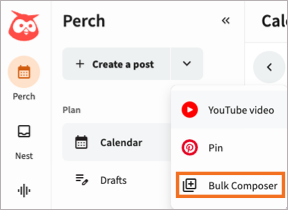
In Hootsuite Plan, open Content, select the arrow beside Create a post, and choose Bulk Composer. Start with Hootsuite’s example CSV rather than inventing column names. Add one future date and time, post text, and optional full URL per row, upload the CSV, choose the accounts, and select Review posts. Fix every flagged post before scheduling the whole batch or only the rows you select. Bulk Composer is the right choice for a prepared, repetitive calendar. If each post needs different approvals, media, or network-specific treatment, schedule the smaller set from the calendar instead.
Visual guide
The Hootsuite path
Click through the real product screens used in the steps below.
Step-by-step
How to Bulk Schedule Posts in Hootsuite
- 01
Download Hootsuite’s example CSV
Go to Plan, select Content, open the arrow next to Create a post, and choose Bulk Composer. Select Download example before you build the batch. The template protects you from a common failure: a CSV that looks reasonable in a spreadsheet but does not use the fields Bulk Composer expects.
- 02
Fill the CSV with valid dates, post text, and optional links
Put the scheduled date and 24-hour time in column A, the post text in column B, and an optional full URL in column C. Use one accepted date format consistently throughout the file. Every time must be in the future by at least 20 minutes, end in 0 or 5, and be unique within the batch. Do not include duplicate posts. Hootsuite warns that Excel can change a four-digit year when exporting, so check the date column before saving the CSV.
- 03
Upload the file and choose the publishing accounts
Upload the CSV in Bulk Composer and select the social accounts that should receive the posts. Bulk Composer supports X, Facebook Pages, LinkedIn Pages and profiles, TikTok, and Instagram Business profiles that use direct publishing. If the batch is for X, select only one X account at a time. You can also choose whether Hootsuite should leave links unshortened before selecting Review posts.
- 04
Repair every error before scheduling
Review the imported rows one by one. A red banner means that Hootsuite found a problem and will not schedule that post until you correct it. Open the row to edit it, or delete the row if it does not belong in this batch. A clean review is more important than speed here, because one malformed date or duplicate does not make the rest of the campaign safer to publish.
- 05
Customize exceptions, then schedule the batch
Select an individual post when it needs a final adjustment. Bulk Composer lets you preview it, add media, change the scheduled time, and customize or remove its link preview. Schedule a single post, a selection, or every row in the CSV. After scheduling, select View scheduled posts to find the batch in the content calendar and make any supported follow-up edits. Leave the page only after scheduling what you need, because unscheduled posts are discarded when you exit Bulk Composer.
Read the report
What the main metrics mean
350-post bulk limit
Bulk Composer can schedule up to 350 posts across the social accounts in one bulk operation. Posts already scheduled for those accounts count toward that limit.
20-minute lead time
Each scheduled time in the uploaded file must be at least 20 minutes after the upload time.
Five-minute time slots
Each bulk-scheduled time must end in 0 or 5, and the file can contain only one post for a given time slot.
Red error banner
A red banner identifies a post Hootsuite will not schedule until its issue is corrected or the row is removed.
Before you continue
- Use Hootsuite’s example CSV and keep one accepted date format throughout the file.
- Check that every scheduled time is at least 20 minutes ahead, ends in 0 or 5, and is unique in the batch.
- Count already scheduled posts for the selected accounts before adding a large bulk upload.
- Review all red-banner errors before selecting Schedule all posts.
- Open View scheduled posts after scheduling and confirm the correct accounts, times, and exceptions made it into the calendar.
FAQ
Common questions
How many posts can I bulk schedule in Hootsuite at once?
Hootsuite Bulk Composer can schedule up to 350 posts in one bulk operation, including posts that were already scheduled for the social accounts you select. A batch can be distributed across accounts, but the existing scheduled content for those same accounts reduces the available bulk capacity.
Why does Hootsuite reject my Bulk Composer CSV upload?
Hootsuite rejects or flags a Bulk Composer row when its date, time, content, or account setup does not meet the importer rules. Check for a mixed date format, a time less than 20 minutes ahead, a time that does not end in 0 or 5, duplicate content, or more than one post in the same time slot.
Can I add images or videos after uploading a Hootsuite bulk scheduling CSV?
Yes. Hootsuite lets you open an imported post in Bulk Composer to add an image or video before scheduling it. You can also preview the post, change its scheduled time, and adjust its link preview there.
Can I bulk schedule LinkedIn, Instagram, TikTok, Facebook, and X posts together in Hootsuite?
Hootsuite Bulk Composer supports Facebook Pages, LinkedIn Pages and profiles, TikTok, Instagram Business profiles using direct publishing, and X. X is the exception when selecting accounts, because each bulk upload can use only one X account at a time.
What happens if I leave Hootsuite Bulk Composer before scheduling every post?
Hootsuite discards imported posts that remain unscheduled when you leave Bulk Composer. Schedule the whole batch, a selected group, or the individual rows you want to keep before exiting.
Sources and further reading
This guide was checked against Hootsuite product documentation:
 Reviewed by Filipe Lins DuarteCo-Founder & CEO
Vast experience talking to customers and users to understand what good software looks like. Background spans commercial and product roles.
 Checked by John RiceCo-Founder & CTO
15+ years building tech products and web applications. Conducted hundreds of user interviews to know what a good product looks like.
Every Marketraa page follows our editorial standards.