 Hootsuite tutorial
How to Set Up Approvals in Hootsuite
Set up a Hootsuite content approval workflow by assigning author and approver permissions, creating an approval team, and adding sequential or parallel approval stages to a social account.
Quick answer
The quick answer
To set up approvals in Hootsuite, first give each author a permission that requires approval and give reviewers an approval permission on the relevant social account. Then create an approval team, open the social account details, choose Edit settings, and add the team under Custom Approvals. Use a single stage when any designated reviewer can handle the work. Add sequential stages only when the order matters, or parallel stages when every reviewer must sign off before the post can publish.
Visual guide
The Hootsuite path
Click through the real product screens used in the steps below.
Step-by-step
How to Set Up Approvals in Hootsuite
- 01
Check that you can change approval permissions
Start in Account, then select Social accounts and teams. Hootsuite limits approval setup to organization Super Admins or Admins, team members with Team Admin or Unlimited permissions, people with Unlimited or Advanced permissions for the social account, and members granted the custom permission to manage social network permissions. If you cannot see the account details or settings controls, ask an organization administrator to make the change rather than trying to build the workflow around a missing permission.
- 02
Set author and reviewer permissions on the social account
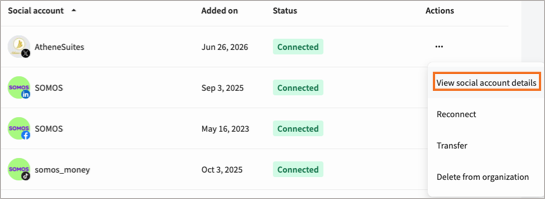
Select Social accounts, find the account, choose More actions, and open View social account details. On the Members tab, set each person’s permission in the Permissions column. Limited, Responder, and the custom Publish Message with Approval permission require a member’s posts to be approved. Advanced, Unlimited, Editor, or the custom Approve Messages permission lets a member approve content. Save the changes before moving on. This distinction is the guardrail: putting an approver in a team does not help if their account permission cannot approve messages.
- 03
Create an approval team when coverage matters
In Social accounts and teams, select Teams and then Create Team. Give the group a specific name, add the people who can review posts, select the social accounts they can access, and create the team. A team is useful when more than one person can cover the same review job. It is usually clearer than listing several individual approvers on every account, especially for client or regional coverage.
- 04
Open Custom Approvals for the social account
Return to Social accounts, open the account’s More actions menu, and select View social account details. Select More again on the details page, choose Edit settings, and open the settings control in Custom Approvals. In the 1st approver search box, choose the approval team or individual who should receive the first review request.
- 05
Choose the approval order and save a testable workflow
Select Add approval only when a second tier adds a real control. Sequential approvals move a post from one approver to the next in the order you set, and every stage must approve it. Parallel approvals notify the listed approvers together, but the post still waits until every approver has approved. Save the workflow, then have an author schedule a non-sensitive test post and verify that the request reaches the intended person or team. A draft alone does not enter the approval process, so schedule or publish the test rather than saving it as a draft.
Read the report
What the main metrics mean
Approval stage
A required review tier in the Custom Approvals workflow. Add another stage only when the next reviewer has a distinct sign-off responsibility.
Sequential approval
Approvers receive the post one at a time in the order set by the administrator. The next stage waits for the preceding one to approve.
Parallel approval
Approvers receive the request at the same time, but every listed approver must approve before the post can publish.
Expired approval
A scheduled post that is still pending when its publishing time arrives fails to publish and moves to Hootsuite’s Expired queue.
Before you continue
- Confirm each author has a permission that requires approval for the correct social account.
- Confirm each reviewer has an approval permission, not just membership in an approval team.
- Give the approval team access to only the social accounts it should review.
- Use sequential stages only for a real order of review, such as brand review followed by legal review.
- Schedule a test post far enough ahead to confirm the request, approval path, and final publishing behavior before relying on the workflow.
FAQ
Common questions
What Hootsuite permission should a social media author have if every post needs approval?
A Hootsuite author whose posts need approval should have Limited, Responder, or the custom Publish Message with Approval permission on that social account. Those permissions require the post to be approved before it can publish.
Who can approve social posts in a Hootsuite approval workflow?
A Hootsuite reviewer can approve social posts with Advanced, Unlimited, Editor, or the custom Approve Messages permission for the social account. Organization and team administrators can also approve when their role includes the relevant account access.
Should an agency use sequential or parallel approvals in Hootsuite for client content?
An agency should use sequential Hootsuite approvals when one sign-off must happen before the next, such as an account lead reviewing before a client reviewer. Use parallel approvals only when all named reviewers need to approve the same post without a required order.
Why did my scheduled Hootsuite post not publish while it was waiting for approval?
A Hootsuite post that is still awaiting a required approval at its scheduled time does not publish and moves to the Expired queue. Edit or delete the expired post, then schedule it again with enough time for every required approval.
Can a Hootsuite draft enter an approval workflow before it is scheduled?
No, Hootsuite sends only scheduled or published posts for approval, not drafts. Schedule the post or choose to publish it after selecting the approver or approval team.
Sources and further reading
This guide was checked against Hootsuite product documentation:
 Reviewed by Filipe Lins DuarteCo-Founder & CEO
Vast experience talking to customers and users to understand what good software looks like. Background spans commercial and product roles.
 Checked by John RiceCo-Founder & CTO
15+ years building tech products and web applications. Conducted hundreds of user interviews to know what a good product looks like.
Every Marketraa page follows our editorial standards.