 Hootsuite tutorial
How to Schedule Posts in Hootsuite
Schedule a social media post in Hootsuite from the content calendar or Create, then select the connected accounts, tailor the post, and choose Schedule for later.
Quick answer
The quick answer
To schedule a post in Hootsuite, open Plan and choose a time slot in the week view, or start from Create. Select the connected social accounts, add and tailor the copy and media, then select Schedule for later. Use the calendar after saving to confirm the post is in the intended slot. The calendar is the better starting point when the timing matters because the slot is part of the decision before you write the post.
Visual guide
The Hootsuite path
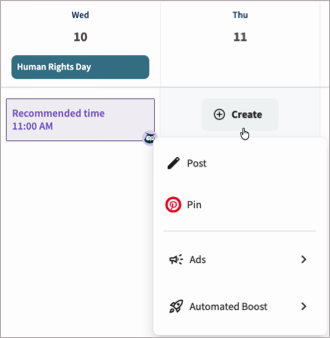
Click through the real product screens used in the steps below.
Step-by-step
How to Schedule Posts in Hootsuite
- 01
Start in Plan when you already know the publishing window
Open Plan and switch to the week view. Select an empty slot on the day and time you want the post to go live, then choose Post from Create. If recommended times are enabled in your settings, Hootsuite highlights suggested times in the calendar. You can select one of those slots before opening the composer. Starting from Create also works, but the calendar gives you a clearer view of conflicts and gaps first.
- 02
Choose the connected social accounts
Select the social accounts that should receive the post. Hootsuite lets you publish to more than one network at once and search accounts by handle, social network, or team. Check the chosen accounts before adding copy. A post that makes sense on LinkedIn may need a different length, link treatment, or hashtag use on another network.
- 03
Write the post and add the media
Enter the post text, then add any mentions, links, emoji, and hashtags that belong in it. Add images, GIFs, or video by dragging files into the post or by selecting Add media. Hootsuite shows a preview as you build the post, so use it to catch an awkward crop, missing attachment, or account-specific wording before scheduling.
- 04
Tailor the content for each social network
Use Your post for the shared version, then select a social network at the top of the content area when one account needs its own edit. This is where you can shorten a version for X, remove a link for Instagram, or adjust hashtags without rewriting the other versions. Mentions need attention here because each social network resolves them separately.
- 05
Schedule for later and verify the card in the calendar
Select a Schedule for later option instead of Post now, then save the post. Return to the content calendar and open the scheduled card to check the time, accounts, copy, and media. For an unpublished post, the calendar lets you edit, delete, reschedule, add or edit tags, or move a post back to drafts. Do this review before the deadline, especially when the post includes video that may need processing.
Read the report
What the main metrics mean
Recommended time
A highlighted calendar time Hootsuite shows when recommended times are enabled in the account settings. It is an option to review, not a reason to ignore a campaign deadline or audience context.
Scheduled
The post has been saved for later and appears in the content calendar, where unpublished content can still be reviewed or changed.
Processing
A label Hootsuite can show while it performs additional work before publishing, such as transcoding a video attachment.
Your post
The shared content version that Hootsuite copies to selected social networks before you make network-specific edits.
Before you continue
- Confirm that every selected social account is connected and is the intended brand account.
- Use the week-view calendar to check for collisions, gaps, and the exact publishing slot before you schedule.
- Review each network-specific version, especially mentions, links, hashtags, and media presentation.
- Open the scheduled card after saving and confirm its status, time, accounts, copy, and attachments.
- Edit or reschedule early enough for Hootsuite to process the content before the scheduled publishing time.
FAQ
Common questions
Can I schedule the same social media post to multiple accounts in Hootsuite?
Yes. Hootsuite lets you select multiple connected social accounts for one post and then tailor the content for each network before you schedule it.
Should I schedule from Hootsuite Plan or from Create?
Use Plan when the publishing window matters because you can select the exact calendar slot before composing the post. Use Create when the content is ready and you want to choose the timing later.
Can I use Hootsuite recommended times when I schedule a post?
Yes. When recommended times are enabled in your settings, Hootsuite highlights suggested times in Plan week view, and you can select one to start creating the post.
How late can I edit a scheduled Hootsuite post with a video?
Hootsuite says to reschedule or edit a post at least 15 minutes before publishing when it includes video, or 30 minutes when video processing is required.
Why does my scheduled Hootsuite post show Processing in the calendar?
Processing means Hootsuite is completing additional work before publishing the post, such as transcoding a video attachment for the social network.
Sources and further reading
This guide was checked against Hootsuite product documentation:
 Reviewed by Filipe Lins DuarteCo-Founder & CEO
Vast experience talking to customers and users to understand what good software looks like. Background spans commercial and product roles.
 Checked by John RiceCo-Founder & CTO
15+ years building tech products and web applications. Conducted hundreds of user interviews to know what a good product looks like.
Every Marketraa page follows our editorial standards.